
Server Performance
DCS Multiplayer server performance varies significantly from server to server depending on mission design, unit density, scripting load, and overall simulation complexity. No two servers run the same workload, and performance cannot be standardized across all environments.
In Panther Den, we are simulating full-scale modern warfare at operational depth, which means the environment routinely contains thousands of active units, including ground forces, air assets, logistics convoys, and dynamic battlefield elements. Even with optimization systems such as our bubble script—designed to limit active simulation range and reduce unnecessary AI processing—the server workload remains significantly higher than typical multiplayer scenarios.
As a result, this environment can be demanding on client-side hardware. Players using older or unoptimized systems should expect potential performance limitations and may need to adjust graphical and simulation settings accordingly. For best results, it is strongly recommended to ensure your system is fully optimized, including updated BIOS firmware, latest GPU and chipset drivers, and properly configured in-game settings to reduce CPU and memory bottlenecks.
Panther Den prioritizes scale and realism, and with that comes a requirement for players to maintain a system capable of sustaining high unit density simulation without compromising stability.
Common Issues
Section titled “Common Issues”- Have you disabled client-side Tacview recording?
- Have you recently repaired your DCS install?
- When was the last time you did a clean (files may be corrupted) install of DCS?
- Have you cleared your FXO/metashader2 folders in Saved Games?
- Have you flushed your DNS (for ping issues)?
- Are you using an SSD? How much disk space is available on your M.2 SSD?
- How are your PC’s airflow & temps?
- Latest Nvidia/AMD GPU drivers installed?
- Do you have too many mods installed?
- Do you have Nvidia rBar enabled via Nvidia Profile Inspector?
- Do you have Windows Page File set for DCS World?
- Do you have your Windows Power Plan set to High Performance?
- Do you have RAM XMP enabled?
- Is your mouse polling rate too high?
- Are you using ReShade?
- Are you on the latest version of SRS?
- Do you have the latest firmware and drivers for your HOTAS and hardware devices?
- Have you installed all your Windows Updates?
- Is your Antivirus blocking DCS World? Have you setup a whitelist?
- Are you using DLSS?
Nvidia DLSS 4.5
Section titled “Nvidia DLSS 4.5”DLSS (Deep Learning Super Sampling), including the latest DLSS 4.5 model stack, is NVIDIA’s AI-driven rendering system that uses Tensor Cores to reconstruct high-resolution frames from lower internal render resolutions. Modern DLSS combines Super Resolution, Frame Generation, and Ray Reconstruction into a unified neural rendering pipeline, increasingly powered by transformer-based models. These newer models improve temporal stability, reduce ghosting and shimmer, and enhance fine detail in motion-heavy scenes while also boosting performance by reducing the GPU workload required for native rendering.
In DCS World, DLSS is especially valuable because the simulator is extremely CPU- and GPU-intensive due to large draw distances, complex cockpit rendering, and heavy asset density in multiplayer environments. DLSS helps by lowering the internal rendering cost while maintaining cockpit clarity and improving overall frame stability, which is critical in VR and high-refresh setups where frame pacing matters as much as raw FPS. However, performance gains vary depending on mission complexity and whether the bottleneck is CPU-bound (which is common in DCS).
At the moment, Eagle Dynamics has not fully integrated DLSS as a core rendering option into DCS World, meaning it is not officially exposed or standardized across all installs. Because of this, DLSS support is typically enabled manually by users through DLL injection—specifically by replacing the nvngx_dlss.dll file inside the bin and bin-mt directories with a newer DLSS runtime version. This allows users to access newer DLSS model improvements even when the core engine has not been updated to natively support them, but results can vary depending on game version, renderer (single-thread vs multithread), and how the simulator handles post-processing.
Install DLSS 4.5
Section titled “Install DLSS 4.5”NVIDIA DLSS (Deep Learning Super Sampling) is a major performance boost for DCS World because the game is heavily GPU-limited in most scenarios—especially large multiplayer missions, dense terrain, and VR. DLSS renders the game at a lower resolution and uses AI to reconstruct the image, giving you much higher FPS, smoother frame times, and fewer stutters. This directly improves tracking, timing, and overall gameplay responsiveness.
It works across all RTX cards from the 2060 to the 5090. Lower-end GPUs get large FPS gains, while higher-end GPUs gain smoother 1% lows, better VR performance, and extra headroom. In DCS, it also reduces strain from shadows, terrain, and heavy object density—areas that normally bottleneck even strong systems.
-
Install and update NVIDIA software
- Download and install the latest NVIDIA App
- Update to the latest NVIDIA Game Ready Drivers
- Restart your PC after installation
-
Update DLSS DLL
- Download the latest NVIDIA DLSS DLL
- Extract the file
- Copy
nvngx_dlss.dllinto:DCS World\binDCS World\bin-mt
- Overwrite the existing files when prompted
-
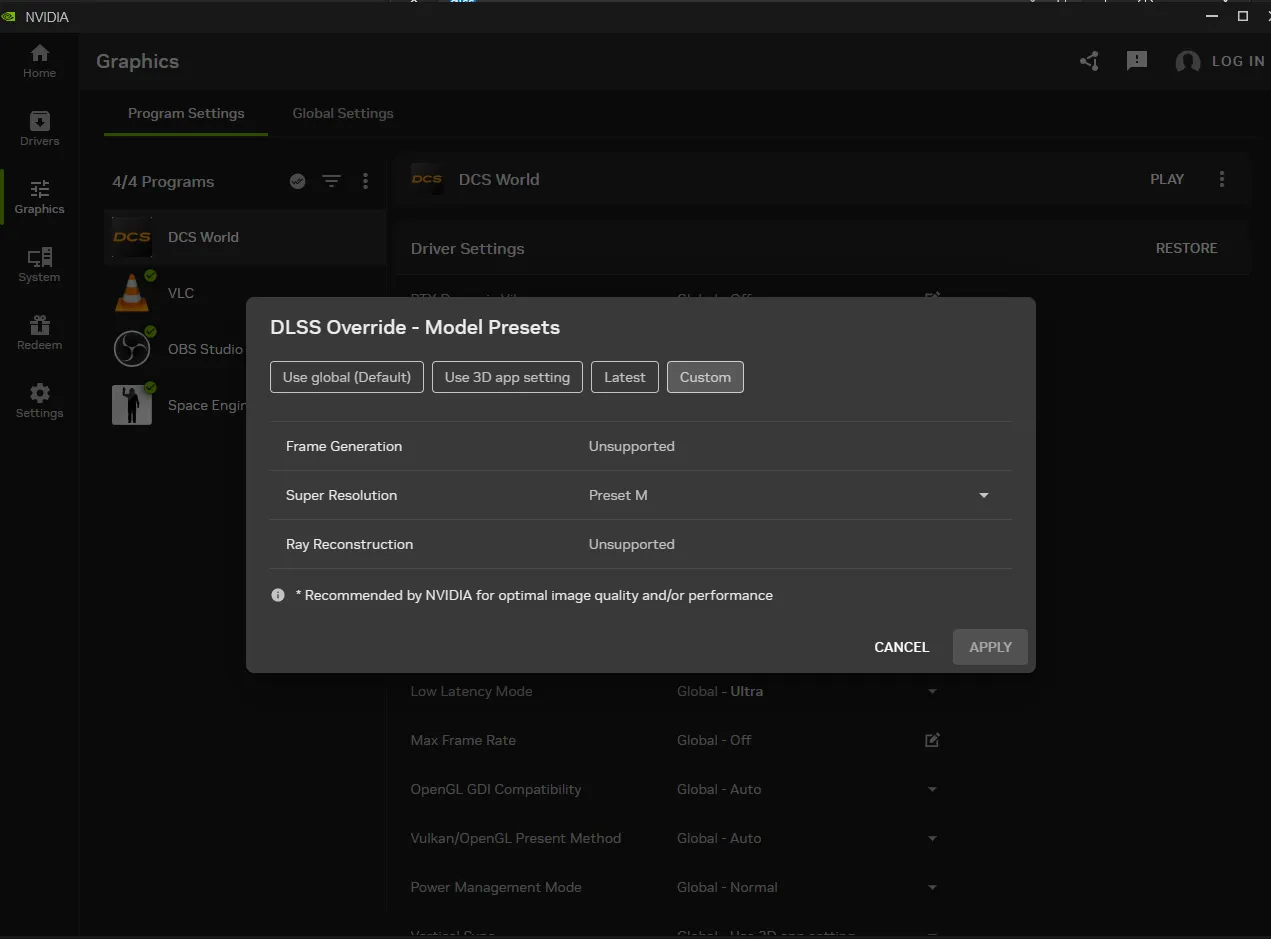
Enable DLSS override (NVIDIA App)
- Open NVIDIA App
- Go to: Graphics → Program Settings → DCS World
- Set: DLSS Override – Model Presets → Custom
- Set: Super Resolution → Preset M
- Close the NVIDIA App
-
Clear shader cache (important)
- Go to:
Saved Games\DCS\ - Delete:
FXOfoldermetashaders2folder
- Go to:
-
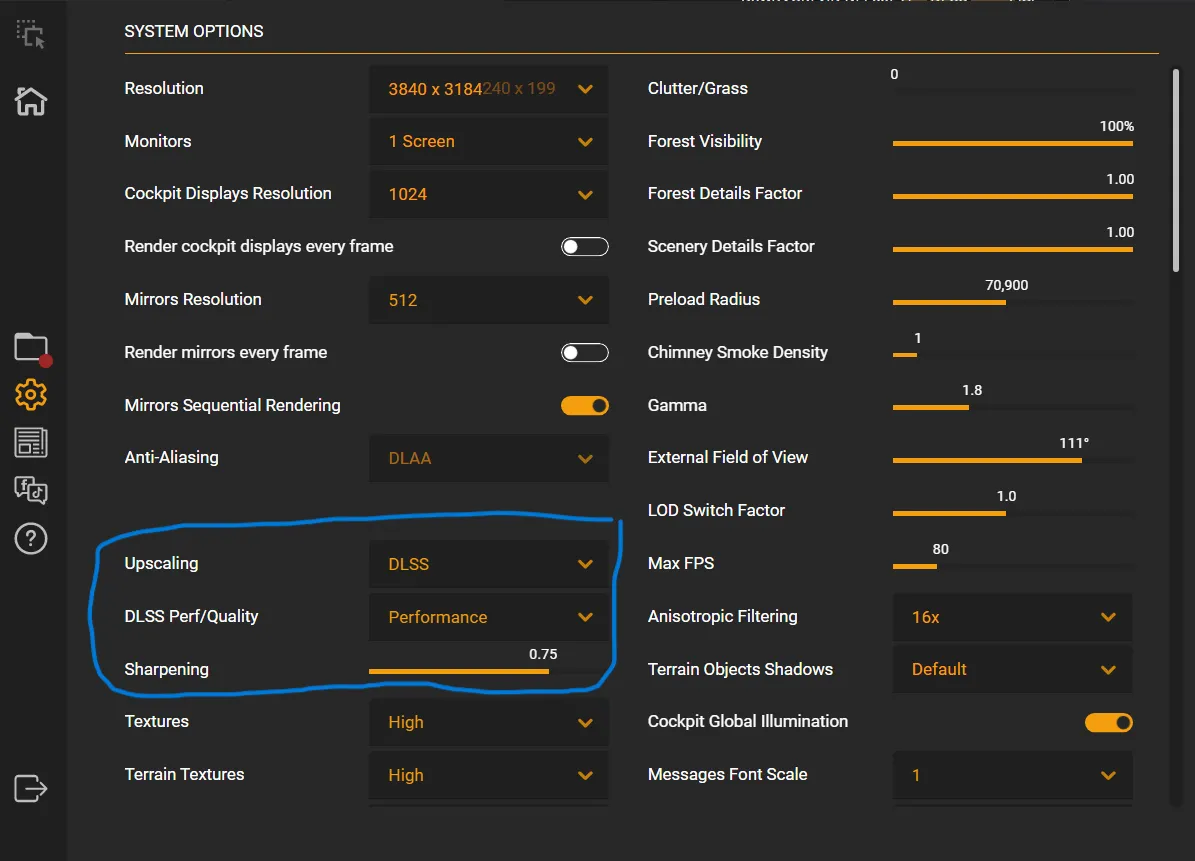
Configure DCS settings
- Launch DCS Launcher (do NOT start the game yet)
- Click the Gear icon (Settings)
- Set:
- Upscaling: DLSS
- DLSS Mode:
- Performance (recommended baseline)
- Ultra Performance (for VR / lower-end GPUs / L preset users)
- Sharpening: 0.70 – 0.75 (adjust to preference)
Preset Notes:
- L preset → Ultra Performance (best for VR / older GPUs)
- M preset → Performance (balanced quality + FPS)
-
Save and launch
- Save settings
- Launch DCS and enjoy improved performance and smoother gameplay